

The best capture card for most streamers is the Elgato 4K X for 4K60 HDR recording with 4K144 passthrough, while the Elgato HD60 X is the better-value choice for 1080p or 1440p console streaming and the AVerMedia Live Gamer 4K 2.1 is a strong alternative when you want high-refresh-rate passthrough and broad PC compatibility.
Our top picks
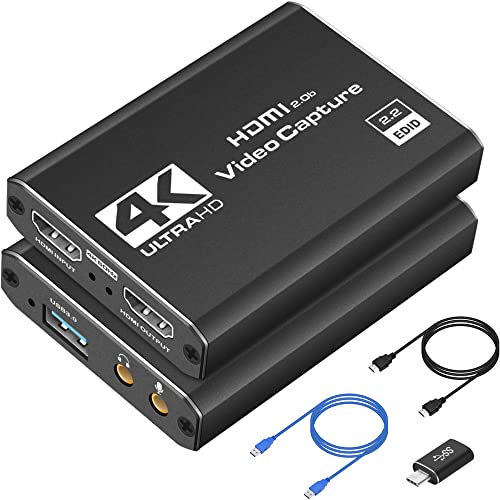
 Capture Card
- 【1080P HD High Quality】Capture resolution up to 1080p…
- 【Plug and Play】No driver or external power supply…
- 【Compatible with Multiple Systems】suitable for Windows and Mac…
 Elgato 4K S Capture Card for PS5
- 4K60 Capture: Record in cinematic quality with crisp…
- HFR Support: Play and capture in 1440p120 or…
- HDR10 Support: Capture brilliant HDR content with tone…
 acer USB 3.0 HDMI Capture Card
- 【4K Clarity, 1080P Performance】Enjoy stunning clarity with our…
- 【Mic-in for Easy Commentary】Plug in a headset or…
- 【Plug and Play, no Extra-Drivers】No extra drivers or…
| Product | Key specs | |
|---|---|---|
| Capture Card | 【1080P HD High Quality】Capture resolution up to 1080p… 【Plug and Play】No driver or external power supply… 【Compatible with Multiple Systems】suitable for Windows and Mac… | Check price |
| Elgato 4K S Capture Card for PS5 | 4K60 Capture: Record in cinematic quality with crisp… HFR Support: Play and capture in 1440p120 or… HDR10 Support: Capture brilliant HDR content with tone… | Check price |
| acer USB 3.0 HDMI Capture Card | 【4K Clarity, 1080P Performance】Enjoy stunning clarity with our… 【Mic-in for Easy Commentary】Plug in a headset or… 【Plug and Play, no Extra-Drivers】No extra drivers or… | Check price |
 Capture Card 4K HDMI Video Streaming to Capture Card 4K HDMI Video Streaming to | High-Quality Video Capture, 4K HDMI Capture Card Ready:… Plug-and-Play USB Capture Card, No Drivers Needed: Designed… Universal Compatibility PS5, Xbox, Switch & More: Stream… | Check price |
As an Amazon Associate we earn from qualifying purchases at no extra cost to you.
Best capture cards at a glance
| Capture card | Maximum capture | Passthrough | Connection | Best for | Typical market range |
|---|---|---|---|---|---|
| Elgato HD60 X | 1440p60 HDR or 1080p60 HDR | 4K60 HDR, high refresh at lower resolutions | USB 3.0, HDMI 2.0 | Value-focused console streaming | About $150–$200 |
| Elgato 4K X | 4K60 HDR10 | 4K144 HDR, 1440p240, 1080p240 | USB-C 3.2 Gen 2, HDMI 2.1 | 4K recording and high-refresh gaming | About $200–$250 |
| AVerMedia Live Gamer Ultra 2.1 GC553G2 | 4K60 HDR | 4K144, 1440p240, 1080p360 depending on setup | USB 3.0, HDMI 2.1 | High-refresh PC and console setups | About $250–$300 |
| AVerMedia Live Gamer 4K 2.1 GC575 | 4K60 HDR | 4K144 HDR and lower-resolution high refresh | PCIe, HDMI 2.1 | Desktop PCs with an available expansion slot | About $250–$350 |
| Elgato 4K Pro | 4K60 HDR | 4K120 HDR and high-refresh lower resolutions | PCIe, HDMI 2.1 | Permanent dual-PC streaming | About $250–$350 |
Capture and passthrough are separate capabilities. A card may send a 4K144 signal to your gaming monitor while recording only 4K60 or 1440p60 to the streaming computer. That distinction matters more than a product’s headline resolution.
Our picks by situation
| Your situation | Recommended type or model | Why |
|---|---|---|
| First console capture setup | Elgato HD60 X | Simple USB connection, sensible price, 4K60 passthrough and reliable 1080p or 1440p capture |
| 4K gameplay videos | Elgato 4K X or AVerMedia GC553G2 | USB capture at 4K60 with HDMI 2.1 passthrough for modern displays |
| Competitive 1440p or 1080p gaming | Elgato 4K X or AVerMedia GC553G2 | Supports high-refresh passthrough without forcing the player to use 60 Hz |
| Desktop streaming PC with an open slot | Elgato 4K Pro or AVerMedia GC575 | PCIe avoids another external USB device and suits frequent use |
| Laptop streaming or occasional recording | USB 3.0 or USB-C capture card | Portable and easier to move, but dependent on the laptop’s ports and bandwidth |
| Older console or 1080p-only workflow | 1080p60 USB capture card | Spending extra on HDMI 2.1 provides little benefit if the source is limited to 1080p |
Elgato HD60 X: the sensible starting point
The HD60 X remains one of the easiest recommendations for PlayStation 5, Xbox Series X|S, Nintendo Switch and older HDMI consoles. It captures up to 1080p60 or 1440p60, supports HDR passthrough, and can pass a 4K60 signal to a compatible display. It uses HDMI 2.0, so it is not designed for 4K120 gaming.
Its external USB design suits laptops and compact desks. The main limitation is that the USB cable, HDMI cables and computer port all need to support the expected bandwidth. A USB 2.0 connection can cause dropped frames, unavailable modes or an unstable preview. For a 1080p60 stream, it is a good balance of price, compatibility and setup effort.
Elgato 4K X: best all-rounder for modern displays
The 4K X is the more future-ready choice if your gaming display runs at 4K120 or above. Its HDMI 2.1 input and output can pass through 4K144 HDR, while USB-C 3.2 Gen 2 connects it to the recording computer. It can capture 4K60 HDR10, which is enough for high-quality YouTube footage and a 60-frame-per-second live stream.
It is particularly useful in a single-PC setup where the gaming computer supplies the signal and also records it. It can also capture a console through the same HDMI chain. Check the computer first: high-quality 4K capture requires a suitable USB-C or USB-A port with the correct USB 3.2 performance, not merely a connector that looks similar.
AVerMedia alternatives: high refresh and internal installation
The Live Gamer Ultra 2.1 GC553G2 competes directly with external HDMI 2.1 cards. It is aimed at users who want 4K60 capture but do not want to sacrifice a 4K144 or 1440p240 gaming display. It works with common streaming software such as OBS Studio and AVerMedia’s own RECentral software.
The Live Gamer 4K 2.1 GC575 and Elgato 4K Pro are internal PCIe cards. Their advantage is a clean, permanent installation and a direct connection to the desktop’s motherboard. Their disadvantages are less portability, the need for a compatible PCIe slot, and more difficult troubleshooting. An internal card is sensible when you stream several times a week; it is unnecessary expense for occasional clips.
Resolution, frame rate and passthrough: what to prioritize
- 1080p60 capture: Still the standard for many live streams. It needs less storage, encoding power and upload bandwidth.
- 1440p60 capture: A useful middle ground for PC gameplay, especially when the source monitor is 1440p.
- 4K60 capture: Best for detailed recordings, but files are larger and the recording computer needs a stronger encoder or graphics card.
- 120 Hz or higher passthrough: Important for competitive games. It lets the player use a fast display while the stream is captured at 60 frames per second.
- HDR: Confirm that HDR is supported on both input and output. Some software or older cards may capture washed-out color unless HDR is configured correctly.
Passthrough latency is normally low enough that the monitor connected to the card’s HDMI output remains the correct place to play. Do not use the software preview as your gaming display: USB transfer and video processing can add noticeable delay. If you must play from the preview, select a card and software combination advertised for low-latency preview, but a direct HDMI monitor connection is safer.
Connection types and compatibility
USB capture cards
USB models are easier to install and move between computers. USB 3.0 is generally adequate for 1080p60 and many 4K60 workflows; faster USB-C connections provide more headroom for high-resolution formats. The port’s specification matters more than its shape. Connect directly to the computer rather than through an unpowered hub, monitor dock or keyboard hub when troubleshooting.
PCIe capture cards
PCIe cards offer a tidy desktop installation and avoid external USB bandwidth conflicts. They require a Windows desktop with an available compatible slot and enough physical clearance. A graphics card with a thick cooler can block a convenient slot, so inspect the motherboard layout before buying.
Console and operating-system support
Most current HDMI capture cards work with Windows through UVC or manufacturer drivers, while macOS support varies by model and software. OBS Studio is broadly compatible, but advanced features such as HDR handling, multi-channel audio and device control may depend on vendor software. PlayStation and Xbox consoles may require HDCP to be disabled for gameplay capture; protected streaming apps and commercial video sources are not intended for capture.
Setup guide: avoid the common failure points
- Connect the source to HDMI In. Use a certified cable appropriate to the target resolution and refresh rate.
- Connect HDMI Out to the gaming display. This preserves the direct display path and minimizes input delay.
- Connect USB or install PCIe. For USB models, use a high-speed port directly on the computer. For PCIe models, shut down and unplug the PC before installation.
- Set the console or PC output. Begin with 1080p60, then increase resolution, HDR and refresh rate one setting at a time.
- Add the card in OBS Studio. Choose the capture device, set the intended resolution and frame rate, and select the correct audio input.
- Record a short test. Check lip sync, HDR color, dropped frames, game audio and microphone levels before going live.
If the screen goes black after enabling 4K120, HDR or variable refresh rate, reduce one setting at a time. HDMI handshakes can fail when the console, capture card, cable and monitor do not share a compatible mode. Turning off HDCP for gameplay capture is another frequent console fix.
Ownership costs and durability
Capture cards have no ink, filters or other routine consumables, but cables and connectors are the parts most likely to cause trouble. Repeatedly moving an external unit can loosen HDMI sockets or strain the USB connector. Leave the card ventilated, avoid stacking it under a laptop or console, and use short, good-quality cables without sharp bends.
A useful cost calculation is based on frequency. A $250 4K card used for four years and 200 recording sessions costs about $1.25 per session before electricity and storage. A $170 1080p card used ten times costs $17 per session. Choose according to the amount of recording you will actually do, not only the maximum specification.
Final buying advice
Choose the HD60 X when you want dependable 1080p or 1440p console streaming at a moderate price. Choose the Elgato 4K X or AVerMedia GC553G2 when 4K60 recording and HDMI 2.1 high-refresh passthrough justify the additional cost. Choose a PCIe model such as the Elgato 4K Pro or AVerMedia GC575 for a permanent desktop streaming system. Before ordering, match the card’s capture limit, passthrough refresh rate, computer port, operating system and HDMI requirements to the equipment you already own.








Write Your Review
No reviews yet. Be the first to share your experience!